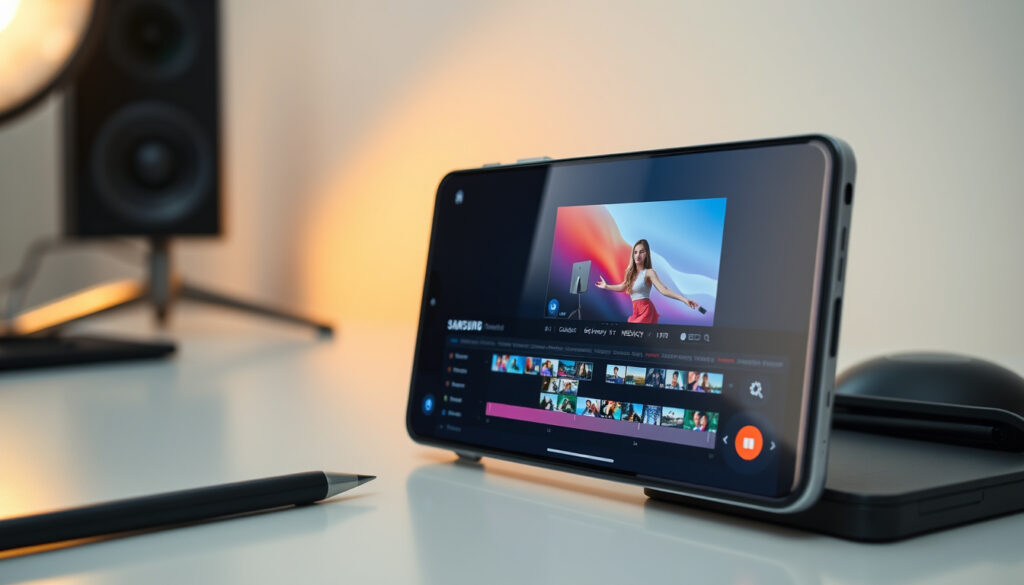
Samsung S25 AI Video Editor: Features, How to Use, and More
Samsung’s Galaxy AI promises to automate highlight reels on the Galaxy S25, but the toolset is split between what ships at launch and what arrives later. This guide walks through Auto Trim, the free period, and how to navigate the Gallery app’s Studio editor.
Auto Trim feature: Creates instant highlight reels from videos on Galaxy S25 · Object Eraser for videos: Expected with One UI 7.1 update (2025) · Galaxy AI availability: Free on Galaxy S25 series until end of 2025 · S25 series launch: January 2025
Quick snapshot
- Auto Trim analyzes footage and generates highlight reels automatically (Samsung YouTube – official demonstration)
- AI video editor lives inside the Gallery app under Studio (Samsung US Support)
- Available on all S25, S25+, and S25 Ultra models at launch (Samsung UK buying guide)
- Exact release date for Object Eraser on videos – expected with One UI 7.1 but not confirmed (Samsung US Support)
- Whether all S25 models will receive the feature (TechNewsTT report)
- Future pricing after the free period ends in 2025 (Samsung UK)
- S25 series launched January 2025 (Samsung US Support)
- Galaxy AI free through end of 2025 (Samsung UK)
- One UI 7.1 update expected later in 2025 (Samsung Canada Support)
- Object Eraser for videos is the next major AI editing tool (Samsung US Support)
- Audio Eraser to remove background noise from clips (Samsung UK)
- Samsung may introduce paid Galaxy AI tiers after 2025 (TechNewsTT)
The table below distills the six key specs you need to know about the S25’s AI video editing capabilities, from software version to free access duration.
| Fact | Value |
|---|---|
| Latest software version | One UI 7.1 (expected) |
| Supported models | Galaxy S25, S25+, S25 Ultra |
| AI video editor location | Gallery app |
| Auto Trim availability | At launch (January 2025) (Samsung YouTube) |
| Object eraser for video | Not yet released; expected with One UI 7.1 (Samsung US Support) |
| Galaxy AI free period | Free for supported devices through end of 2025 (Samsung UK) |
Samsung is betting that most phone editors will trade manual timeline work for one-tap AI shortcuts. The first feature, Auto Trim, already delivers on that promise—you can skip the tedious scrubbing entirely. The catch: the most advanced tools, like Object Eraser, are still in the pipeline, and the free window has a hard stop at the end of 2025.
Does the Samsung Galaxy S25 have an AI video editor?
Yes—the Galaxy S25 series ships with a dedicated AI video editor built into the Gallery app. Samsung calls the new workflow “Studio,” and it’s designed to automate the parts of video editing that most people skip because they take too long.
What is Galaxy AI?
Galaxy AI is Samsung’s umbrella brand for on-device machine learning features across the S25 series. For video, it powers Auto Trim, which Samsung UK describes as AI that “extracts key scenes to create instant, auto-generated videos and reduce editing time.” The same AI pipeline handles photo editing, text summarization, and real-time translation.
Which S25 models support the AI video editor?
The AI video editor works on all three S25 models: the base S25, S25+, and S25 Ultra. According to Samsung US Support, the feature is part of One UI 7.0 out of the box and does not require a separate download.
The pattern: Samsung is pushing AI editing to the entire S25 line, not reserving it for the Ultra. The trade-off is that more advanced tools like Object Eraser for video are still in development, meaning early adopters get Auto Trim now but will have to wait for the full suite.
Does the Samsung Galaxy S25 have AI features?
Beyond video editing, the Galaxy S25 packs a wide AI arsenal. Auto Trim sits alongside Audio Eraser, Circle to Search, AI Select, and ProScaler, as listed in Samsung’s UK buying guide.
List of AI features on Galaxy S25
- Auto Trim (video highlight reel)
- Audio Eraser (remove background noise from video audio)
- Object Eraser (photo, video version expected later)
- Circle to Search (Google integration)
- AI Select (context-aware actions)
- ProScaler (upscaling in games and apps)
How AI enhances video editing
Samsung US Support explains that Auto Trim “removes unnecessary parts such as pauses or blanks.” The AI analyzes each clip’s motion, speech, and pacing to keep only the engaging moments. You can then adjust the length with a custom slider or let the AI choose a short or long reel format.
“Auto Trim analyzes selected footage and automatically generates a short or long reel with key scenes.”
The implication: Samsung is aiming to make video editing as easy as taking a photo. The AI handles pacing judgment, which traditionally requires experience. For casual creators, that means a finished clip in under a minute. For power users, the manual editor remains fully accessible.
Does the Samsung S25 have an AI photo editor?
Yes, the S25 includes an AI photo editor for object removal and background edits. The video editor follows a similar design philosophy but focuses on temporal editing—trimming, merging, and applying effects.
Difference between AI photo and video editor
The photo editor uses generative fill to remove objects and adjust backgrounds. The video editor, by contrast, works on the timeline: it cuts, reorders, and applies filters. Samsung Canada Support documents the manual tools (Trim, Transform, Flip, Decorations, Filter, Audio), while the AI layer adds Auto Trim and the upcoming Object Eraser for video.
Photo editing tools available
Photo AI tools include Object Eraser, Shadow Eraser, Reflection Eraser, and background generation. These are separate from the video editor but share the same Galaxy AI infrastructure.
What this means: If you need to edit a photo, the AI tools are mature and available now. Video AI is catching up—Auto Trim is strong, but video object removal is still months away.
Samsung is selling a promise of AI-driven video editing, but the current feature set is limited to trimming and audio cleaning. Power users who need object removal or advanced effects will have to wait for the One UI 7.1 update. Meanwhile, photo editors already have a full toolkit at launch.
How to edit videos in Samsung S25
Editing a video on the S25 breaks into two paths: the AI automated route (Auto Trim) and the manual route (Studio Video Editor). Both start in the Gallery app.
Using Auto Trim to create highlight reels
- Open the Gallery app.
- Tap Menu (three lines or dots at the bottom) and select Go to Studio. (Samsung YouTube guide)
- Tap Start a new project.
- Select one or more videos. Or tap Search > Shot types > Video to filter clips. (Samsung US Support)
- Tap the Auto Trim icon (located at the bottom left of the editing screen).
- Choose a reel length: Short or Long, or drag the Custom length slider.
- Preview the result by tapping Play. If happy, tap Apply.
- Add Text, Stickers, Draw, or Audio if desired.
- Tap Save movie to export. (Samsung US Support)
Manual editing with Samsung Video Editor
For full manual control, open Gallery, select a video, and tap Edit. The classic editor offers Trim, Transform, Flip, Decorations, Filter, and Audio tools, as documented by Samsung Canada Support. You can reorder clips by touching and holding, then dragging—a workflow identical to the older Galaxy models.
Applying AI effects and filters
After Auto Trim, you can apply AI-driven effects: Background blur, Portrait video, and Auto color grading. These are one-tap enhancements that adjust lighting, skin tones, and depth. They work on the trimmed reel just as they do on manual edits.
“Users can reorder clips by touching and holding a clip, then dragging and dropping it.”
Samsung US Support – Editing guide
How do I activate Samsung AI and is it free?
Galaxy AI is active by default on the S25 series. There is no separate toggle to enable the video editor—it appears in Gallery automatically. But you may want to check your AI settings and understand the pricing.
Activating Galaxy AI on S25
Open Settings > Advanced features > Galaxy AI to see the full suite. You’ll need to sign in to a Samsung account on first use. No payment method is required during the free period.
Samsung AI pricing and free period
As of the S25 launch, Samsung UK states that Galaxy AI is “free until end of 2025.” This applies to all supported Galaxy devices, including the S25 series. Samsung has not announced any paid plans beyond that date.
Future plans for Galaxy AI access
It remains unclear whether Samsung will charge a subscription or introduce a tiered model. TechNewsTT suggests that the company is evaluating options, but nothing is confirmed. Users who buy an S25 in 2025 get at least one year of free access.
“Samsung’s AI video analytics speeds photo search and video editing.”
TechNewsTT – Third-party analysis
The catch: The free period gives Samsung time to prove the value of AI editing. If users rely on Auto Trim daily, a paid tier would be an easy upsell. Until then, you can use all features without worrying about cost. Samsung must decide whether to monetize as a subscription or bundle it into future phone prices.
For anyone buying an S25 in 2025, the choice is straightforward: use the AI video editor freely for the first year, and keep an eye on Samsung’s announcements for 2026. If you need Object Eraser for videos, you’ll have to wait—but Auto Trim is ready and remarkably effective right now.
Related reading: Remove Text from Image Online Free with Top AI Tools · Xiaomi Pad 7 Pro Review
Frequently asked questions
Can I use the AI video editor on older Galaxy phones?
No—the Studio video editor and Auto Trim are exclusive to the Galaxy S25 series as of early 2025. Older models like the S24 have the classic manual editor but lack Galaxy AI video features.
Does Auto Trim work on all video lengths?
Yes, Auto Trim can process any video length stored in the Gallery. The AI analyzes the full clip and suggests a short or long reel, or you can set a custom duration.
Is Object Eraser for videos available now?
Not yet. Samsung has announced the feature as part of an upcoming One UI 7.1 update, expected later in 2025. It will likely appear first on the S25 Ultra.
How do I access Galaxy AI settings on S25?
Go to Settings > Advanced features > Galaxy AI. You can toggle individual features on/off and manage your Samsung account connection.
Can I disable AI suggestions in video editor?
Yes—in the Studio editor, tap the three-dot menu and turn off Auto Trim suggestions. The manual tools remain fully available.
Does the S25 video editor support 8K editing?
Yes, the editor supports videos recorded in 8K at 30fps. Note that exporting in 8K may require more storage and processing time, but the AI tools work on 8K footage without downscaling.
What video formats are supported in the AI editor?
The Gallery app supports MP4, MOV, and AVI formats. Auto Trim works on any video that the Gallery can open, including HDR clips.
More related posts
 DBS ATM Near Me: Singapore Locations, Hours & Machines
 Eight is Under Which Telco? StarHub MVNO Explained
 Mumbai Indians vs Gujarat Titans Match Scorecard 2026
 What Is Withholding Tax in Ireland? PSWT and DIRT Explained
 Kings vs Super Kings: Head-to-Head Record, History & Key Players
 When is Black Friday 2025? Dates, Deals & What to Know
 Marine Parade GRC Opposition: WP Walkout GE2025 Explained
 Best Trading Platform for Beginners in Singapore 2025
